
Training Outcomes Within Your Budget!
We ensure quality, budget-alignment, and timely delivery by our expert instructors.
Table of Content
- Microsoft Word Tools Guide and How to Use Them
- Getting Started with Microsoft Word
- Microsoft Word Formatting Tools and Layout Tools for Clean Documents
- Microsoft Word Proofing Tools and Reference Tools for Accuracy
- Microsoft Word Tools Guide: What Are the Hidden Tools in Microsoft Word?
- Microsoft Word Productivity Tools to Work Smarter, Not Harder
- Microsoft Word Drawing Tools, Templates, and Visual Elements
- Microsoft Word Editing and Review Tools, Plus Collaboration Tools
- Microsoft Word Mail Merge Tools and Developer Tab Features
- Microsoft Word Macro Tools and Copilot Tools for Automation
- Conclusion
- Recommended Reads
Recent Blogs
ISO 31000 Risk Assessment Process
August 27th, 2026
Top Tech Certifications Driving IT Infrastructure Modernization
August 27th, 2026
Kanban vs Scrum: Which Agile Framework to Choose?
August 27th, 2026
Azure AZ-104 Exam Study Guide: Pass on First Attempt
August 27th, 2026
ISO 22301 Clauses Explained
August 27th, 2026
ISO 13485 Medical Devices QMS
August 27th, 2026
Sprint Planning Best Practices: Template & Common Mistakes
August 27th, 2026
How to Write User Stories: Format, Examples & Acceptance Criteria
August 27th, 2026
AWS SysOps Administrator Certification Guide
August 24th, 2026
Cloud Computing Salary Guide 2026: AWS, Azure & GCP
August 20th, 2026
CompTIA Cloud+ Certification: Complete Guide
August 20th, 2026
ISO 31000 vs ISO 27001
August 20th, 2026
CISM Certification Cost and Roadmap for Career Success
August 19th, 2026
CISSP Exam Format & Domains
August 19th, 2026
Closer Look at CISSP Requirements That Truly Matter Most
August 19th, 2026
Microsoft Word Tools
Last updated on August 10th, 2026
- Share
-

-

-

-

-

 Sachin Kumar
By learning the right tools from the start, you can work more efficiently, create polished documents, and make better use of everything Microsoft Word has to offer.
Microsoft Word Tools Guide and How to Use Them
Introduction
Microsoft Word remains one of the most trusted applications for creating documents, but many users rely only on its basic features. This Microsoft Word Tools guide is designed to help beginners understand the tools that improve writing, editing, formatting, and collaboration. Before exploring these features, it is useful to understand What Microsoft Word is and how it supports different types of documents, from school assignments to business reports and resumes. By learning the right tools from the start, you can work more efficiently, create polished documents, and make better use of everything Microsoft Word has to offer.

Getting Started with Microsoft Word
Microsoft Word is a computer program developed by Microsoft that helps you write and edit documents. It lets you create, edit, format, and save documents such as letters, reports, resumes, assignments, and other files. It also allows you to format text, add pictures, and save your work easily.
Word has been around since the 1980s and has progressed from a simple typing tool into a full document-creation platform, used today for everything from quick notes to lengthy business contracts.
People use Word for tasks such as:
- Create professional reports, cover letters, and resumes.
- Write essays, articles, and research papers with ease.
- Prepare invoices, forms, and business letters.
- Work together with teammates on the same document.
- Design simple newsletters, flyers, and other basic documents.
Word is available on Windows, Mac, and mobile devices, and can also be accessed online through a browser with a Microsoft account. Once you open the program, you're greeted by a blank page and a ribbon of tabs across the top. Each tab groups related tools together, and understanding this layout is the first step toward using Word confidently.
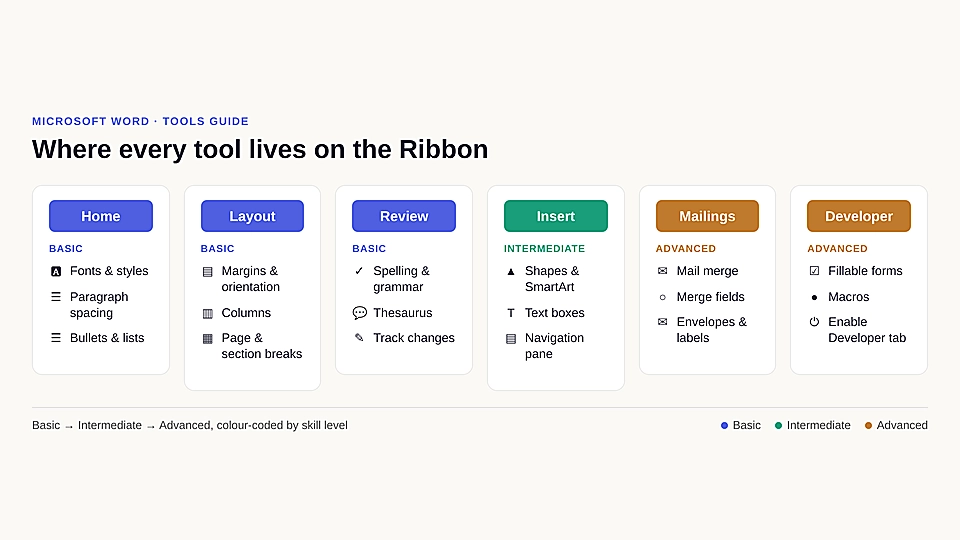
Here's a quick roadmap of what's covered, from the simplest daily tools to the most advanced:
|
Skill Level |
Ribbon Tab |
What You'll Learn |
|---|---|---|
|
Basic |
Home |
Fonts, paragraph spacing, bullet lists |
|
Basic |
Layout |
Margins, orientation, columns, breaks |
|
Basic |
Review |
Spelling, grammar, thesaurus, citations |
|
Intermediate |
View / Insert |
Hidden shortcuts, productivity tools, shapes |
|
Intermediate |
Review / Insert |
Track changes, comments, real-time sharing |
|
Advanced |
Mailings / Developer |
Mail merge, fillable forms, macros |
|
Advanced |
Home / Copilot |
AI-assisted writing and automation |
Microsoft Word Formatting Tools and Layout Tools for Clean Documents
Good formatting makes a document easier to read, and Microsoft Word offers a full set of formatting tools to help with this.
Text and Paragraph Formatting
These are found mainly under the Home tab; these tools control how your text looks:
- Font style, size, and color selection
- Bold, italic, underline, and strikethrough options
- Paragraph spacing and line spacing controls
- Bullet points, numbered lists, and indentation
Working with Page Layout Tools
Separately, the Microsoft Word Layout Tools handle how content is arranged across the page rather than how individual text looks. These include:
- Adjusting page margins and switching between portrait or landscape layout.
- Divide text into columns for newsletter-style pages.
- Insert page breaks and section breaks to organize content.
- Add watermarks and decorative page borders for a polished look.
Beginners often confuse formatting with layout. The table below breaks down the difference:
|
Aspect |
Formatting Tools |
Layout Tools |
|---|---|---|
|
Controls |
How text looks |
How the page is structured |
|
Examples |
Font, bold, spacing, lists |
Margins, orientation, columns |
|
Found Under |
Home tab |
Layout tab |
|
Best Used For |
Styling words and paragraphs |
Arranging the overall page |
Using both of these features together gives your document a clean, professional appearance without needing any design experience.
Microsoft Word Proofing Tools and Reference Tools for Accuracy
No document feels complete without a check for errors, and this is where Microsoft Word Proofing Tools come in.
Checking Your Writing
Found under the Review tab, proofing features include:
- Spelling and Grammar checker with real-time underlines
- Editor pane, which offers suggestions for clarity and tone
- Thesaurus for finding better word choices
- Word Count for tracking document length
These features catch mistakes before they reach your reader.
Adding Citations and References
Separately, Microsoft Word Reference Tools help with academic and research-based writing. Anyone writing a thesis or formal report will find these Microsoft Word Reference Tools save hours of manual citation work. They include:
- Citation and bibliography generator with multiple style formats (APA, MLA, Chicago).
- Table of Contents, which updates automatically as headings change.
- Footnotes and endnotes for source explanations.
- Index creation for longer documents.
This Microsoft Word Tools guide shows that using proofing tools together with proper citations helps make your documents more accurate and reliable. These features are especially useful when creating reports, academic papers, or other formal documents.
Microsoft Word Tools Guide: What Are the Hidden Tools in Microsoft Word?
Once you're comfortable with the basics, it's worth digging a little deeper. Most people open Word, type their text, and save the File, never realizing the program has several tools tucked away in menus.
The Ribbon at the top holds most features, but some of the most useful ones are hidden behind small arrows, right-click menus, or the bottom status bar.
Here are a few commonly overlooked features:
- Quick Access Toolbar: lets you pin your favorite commands so you don't have to search for them every time.
- Status bar options: right-click the bar at the bottom to add word count, page number, or line number displays.
- Navigation Pane: shown under the View tab, it helps you jump between headings instantly.
- Smart Lookup: a research tool that searches the web without leaving your document.
- Format Painter: copies formatting from one section of text and applies it elsewhere with a single click.
These small tools rarely get attention, but they make document creation noticeably faster once you know where to find them.
Microsoft Word Productivity Tools to Work Smarter, Not Harder
Beyond formatting and hidden shortcuts, Word also comes with several Microsoft Word Productivity Tools designed to help you finish work faster and with fewer errors.
Time-Saving Features
These productivity-focused tools reduce repetitive work:
- AutoCorrect: Fixes many spelling mistakes while you type, so you don't have to correct every error yourself.
- AutoText and Building Blocks: Store text you use often, such as signatures, headings, or standard paragraphs, and add them to a document in just a few clicks.
- Read Aloud: Read your document out loud, making it easier to catch words or sentences that don't sound right.
- Focus Mode: Hides most on-screen tools for a while, giving you a cleaner space to work without distractions.
- Word Count: Shows the number of words as you type, so you can keep track without checking manually.
Keyboard Shortcuts Worth Learning
A few shortcuts can significantly speed up your writing:
|
Shortcut |
Action |
|---|---|
|
Ctrl + B / I / U |
Bold, italic, underline |
|
Ctrl + F |
Find text quickly |
|
Ctrl + Z / Ctrl + Y |
Undo / redo |
|
Ctrl + C / Ctrl + V |
Copy / paste |
|
Ctrl + S |
Save the document |
|
Ctrl + P |
Print the document |
For beginners, learning three or four of these can minimize the time spent on document creation.
Microsoft Word Drawing Tools, Templates, and Visual Elements
As your documents get more advanced, you'll likely want to go beyond plain text. Words are not limited to writing. It also includes Microsoft Word Drawing Tools for adding shapes, diagrams, and simple illustrations directly inside a document.
What You Can Draw in Word
Under the Draw and Insert tabs, you'll find:
- Draw sketches using the freehand pen and pencil tools.
- Insert shapes such as arrows, boxes, and callouts.
- Create diagrams and flowcharts with SmartArt.
- Add text boxes that you can move, resize, and format easily.
These features are especially useful for creating flowcharts, simple diagrams, or for visually highlighting parts of a document rather than relying solely on written explanations.
Microsoft Word Templates and Tools for Quick Starts
You can work fast by using a template instead of making a document from the beginning. Word has ready-made templates for resumes, letters, reports, invoices, and other documents. Open File > New, pick a template you like, and edit it as needed.
How to Automatically Generate Alt Text in Word
After you add an image, you can add alt text to help screen readers explain images to people with visual impairments Right-click the image and choose Edit Alt Text. Word may suggest a description, which you can check and change if needed before saving.
Microsoft Word Editing and Review Tools, Plus Collaboration Tools
Once a draft is ready, more advanced projects usually involve other people, and this is where Microsoft Word Editing and Review Tools help refine the content before it's finalized.
Reviewing a Document
Some useful review tools in Word include:
- Track Changes: Keeps a record of every edit made to the document.
- Comments: Lets reviewers add notes without changing the original text.
- Compare: Highlights the differences between two versions of a document.
- Accept or Reject: Choose whether to keep or remove each suggested edit.
- These tools are especially useful when several people review the same document before it is finalized.
These tools are helpful when several people edit the same document or when you need to check changes before creating the final version.
Working with Others in Real Time
Word also supports Microsoft Word Collaboration Tools for teams working on the same File:
Word also makes it easier to work with others on the same file.
- Co-authoring: Different users can edit a document at the same time.
- Sharing: Send the file link so others can view or make changes.
- Version History: Check previous versions and restore an older one when needed.
- @Mentions: Tag someone in a comment to ask for their input.
These tools make it easy for a team to work on one document instead of sending different copies by email.
Microsoft Word Mail Merge Tools and Developer Tab Features
For repetitive, personalized documents like letters or certificates, Microsoft Word Mail Merge Tools save enormous amounts of manual work, and this is one of the more advanced features Word offers.
How Mail Merge Works
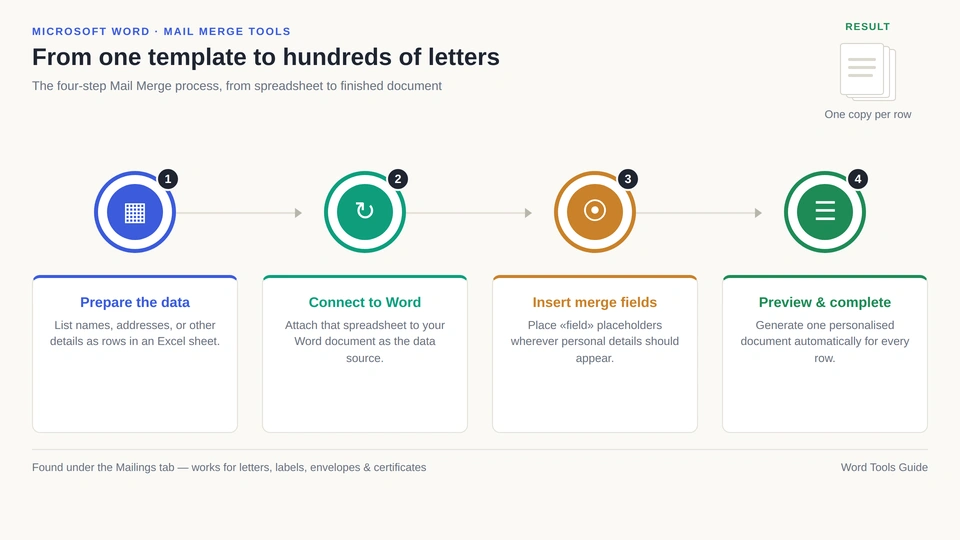
Found under the Mailings tab, the process typically involves:
- Preparing a data source, such as an Excel sheet with names and addresses.
- Connecting that data source to your Word document.
- Inserting merge fields where personalized details should appear.
- Previewing and completing the merge to generate individual documents.
Features such as Mail Merge depend on data stored in Excel. Microsoft Excel Certification Training can help you understand how to organize and manage that data more effectively.
This feature is commonly used for invitations, mailing labels, and bulk certificates, turning one template into hundreds of personalized copies within minutes.
Exploring Word Developer Tab Tools
These features give you extra options for creating and managing documents with more control.
How Do I Enable Developer Tools in Word?
Go to File> Options > Customize Ribbon, then check the "Developer" box under Main Tabs. This adds a new tab with advanced controls to the Ribbon.
How to Create Fillable Forms in Word
The Developer tab gives you extra options for creating interactive documents. You can create interactive elements such as text fields, checkboxes, and dropdown menus. This makes simple forms that users can complete without leaving Microsoft Word.
Microsoft Word Macro Tools and Copilot Tools for Automation
At the most advanced level, Word can automate entire workflows. For repetitive tasks, Microsoft Word Macro Tools let you record a sequence of actions and replay them with one click.
Recording a Simple Macro
Under the Developer tab, macros work like this:
- Click "Record Macro" and name it
- Perform the actions you want to automate, such as formatting a heading style
- Stop recording once finished
- Run the macro anytime using its assigned shortcut
This feature is especially useful for people who repeat the same formatting steps across many documents.
Using AI Inside Word
More recently, Microsoft Word Copilot Tools have introduced AI assistance directly inside the writing experience, representing the newest layer of what Word can do.
How to Use Copilot in Microsoft Word
Copilot works within Word as a helpful assistant that appears on the side or directly in your document. You can use it to shorten long documents, improve paragraphs, change the writing style, or create a draft by simply giving a few instructions.
How to Automate Word Documents with AI
When Copilot is used with templates and macros, creating similar documents becomes quicker and easier. It can help prepare the first draft of reports or proposals, leaving you more time to check the content and make improvements.
The table below shows how these two automation approaches differ:
|
Feature |
Macros |
Copilot |
|---|---|---|
|
How It Works |
Records and replays manual steps |
Generates content using AI |
|
Best For |
Repetitive formatting tasks |
Drafting, summarizing, rewriting |
|
Setup Required |
Recording steps once |
None, just type a prompt |
|
Skill Level |
Intermediate to advanced |
Beginner-friendly |
As you become more confident with Microsoft Word, you may also want to expand your professional skills in other areas. SterlingNext Professional Training offers learning opportunities across technology, business, and professional certification programs.
Conclusion
Microsoft Word Tools guide explains how Microsoft Word offers much more than basic typing and formatting. Its built-in features, useful shortcuts, and AI-powered Copilot can help you create documents faster, improve accuracy, and complete tasks more easily, if you are new to the word, start by learning the basics instead of exploring every feature at once. Begin with simple tools like formatting text, checking spelling, correcting grammar, and adjusting page settings. As you become more at ease, explore advanced features such as templates, mail merge, document collaboration, and automation. Regular practice with Word tools will help you work faster and manage documents with greater confidence.
Recommended Reads
Get Certified With Industry Level Projects & Fast Track Your Career
Checkout Top 10 Highest Paying Jobs
Frequently Asked Questions
Yes. This guide is designed for anyone who is new to Microsoft Word. It begins with everyday features like text formatting and spell check before moving on to tools such as Mail Merge, macros, and Copilot as your skills improve.
Most versions of Microsoft Word include everyday features such as text formatting, spell check, grammar suggestions, page layout, and review tools. Some newer features, including Copilot, are only available with certain Microsoft 365 subscriptions, so check which plan you have.
Start by learning the basics, such as typing, changing text styles, saving your work, and fixing spelling mistakes. After that, get familiar with page layout, comments, and review features. When those become easy to use, move on to tools like mail merge, macros, and Copilot.
Yes. Once Word is installed, you can write, edit, and save documents without an internet connection. You'll only need to go online if you want to use features like Copilot, save files to the cloud, work with others in real time, or download new templates.
Macros are usually safe when you create them yourself or get them from someone you trust. Avoid enabling macros in unfamiliar files, because they may contain harmful code that could damage your computer or data.
Open the Review tab and select Track Changes before you begin editing, word will record your changes as you work, including text you add or remove and any formatting changes, making it easy to review everything later.
Yes. Upload the document to OneDrive or SharePoint, then give others access to it, everyone can work on the same file, and each person's edits appear as they are made, so you don't have to manage separate copies.
Use formatting tools to change the appearance of text, such as its font, size, color, or spacing. Layout tools are used to arrange the page by setting margins, choosing the page orientation, creating columns, and adding section breaks.
No, mail merge works for far more than letters. It's also commonly used for mailing labels, envelopes, certificates, invitations, and any other document that needs personalized, repeated details pulled automatically from a connected data source like Excel.
Go to File> Options > Customize Ribbon, then check the "Developer" box under Main Tabs on the right side. Click OK to confirm, and the Developer tab will appear on your Ribbon, since it stays hidden by default.